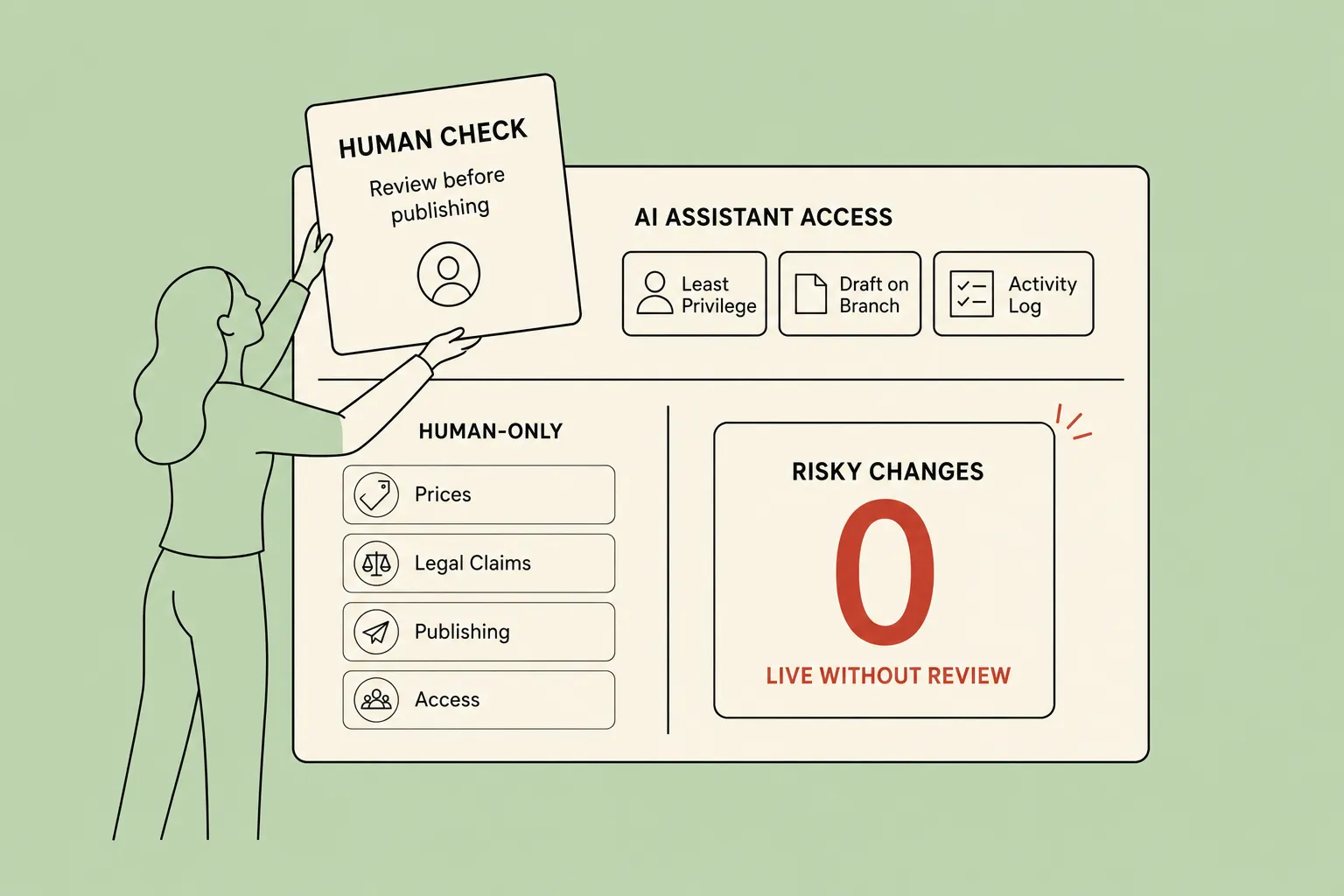
Install Webflow's connected app in Gemini, or connect Claude, ChatGPT or Codex through Webflow's MCP server, from the least-privileged role that can do the job. Give the assistant Agent Instructions, route its work through a page branch or staging and a human review before production, and check the Site Activity Log (on Enterprise), where MCP changes are recorded. Prices, legal claims, publishing and access stay with a person.
The usual fear about letting an AI assistant into your website is the connector itself: a chatbot wired straight into the CMS, free to wander. Webflow's documentation tells a less dramatic story. Its developer overview of the MCP server puts it plainly: "An agent can do only what you can do in the Designer, and nothing more."
That moves the risk somewhere easier to miss. Since October 15, 2026, Webflow has been a connected app inside Google Gemini, alongside the Claude, ChatGPT and Codex routes it already offered. Whoever clicks "connect" hands the assistant their own role, and the assistant can then edit the prices, services and claims that AI answers go on to repeat about your company. So the real security decision happens in the first minute of setup. Seven steps get it right, and a short list keeps the riskiest changes in human hands.
What changed on October 15
Webflow and Google announced that Webflow is now a connected app in the Gemini app, chosen for a connector marketplace the release describes as "available only to approved partners". The connection runs through Webflow's MCP server, so Gemini gets the same core capabilities already available through Claude, ChatGPT, Codex and Slack. Think of the Model Context Protocol (MCP) as a universal adapter: Webflow builds one socket, and any compatible assistant plugs into the same set of tools. According to the release, those tools cover analytics questions, building pages from existing styles, managing CMS items and running site audits. The integration is "free to install and does not currently consume Webflow AI credits," and access to individual capabilities "depends on a customer's existing Webflow plan and permissions." (For the news itself, see the Rundown.)
Teams already run assistants on production sites. CMSWire's report on Webflow MCP 2.0 relays Webflow's own figures: more than 30% of enterprise customers actively use MCP, usage has grown more than fourfold since January 2026, and nearly 90% of those users connect through Anthropic's Claude. Webflow gave no methodology or base for those numbers. According to Webflow, Arkose Labs moved a decade-old WordPress site to Webflow "in days" using Claude Code through the MCP server. Governance is already a working question for marketing teams.
Before you start
Who this is for: a marketing lead, or the agency running the site, who wants an assistant drafting pages, updating CMS content or answering analytics questions without handing it production.
What you need:
- A Webflow site. Webflow's help center overview of the MCP server says it "is available on all Site plans, including the free Starter plan."
- An assistant account: Claude, ChatGPT, Codex or Gemini. For Gemini, Webflow's Gemini setup guide says Google offers the connector only in the US, in English, to users 18 or over with a personal Google account (work and school accounts aren't supported yet), and Keep Activity must be on.
- A Webflow site role other than Reviewer. Webflow's guide to connecting AI tools says "Users with any site role except Reviewer can connect to the Webflow MCP server."
What's plan-gated: page branches, custom publishing roles, the Site Activity Log and MCP-based access management need Enterprise. Analyze, Optimize and AEO data are optional add-ons on paid Site plans. Some visual work also needs the Designer open with Webflow's Bridge App. On a lower plan, Steps 4 and 6 include a fallback.
Rough effort: by our estimate, about an hour to set up and 15 minutes a month to review.
The steps borrow their shape from the OWASP Top 10 entry on excessive agency, which traces agent harm to excessive functionality, excessive permissions and excessive autonomy. Step 1 limits what the assistant is for, Step 2 limits what it can reach, and Steps 4 and 5 limit what it can do without a person.
Step 1: Decide what the assistant is for, and write down what it isn't for
Name the approved jobs first. Good fits are repetitive and easy to check: drafting a page from existing components, bulk CMS updates, site audits and analytics questions. Webflow's Marketplace listing for the Gemini connector gives a typical bulk job: add an Industry field to Case Studies and fill it in for 40 entries. Tedious for a person, quick for an assistant, simple to verify.
Then start small. Pravin Kumar, an independent consultant, advises GTM teams in his checklist for the Webflow-Gemini connector to pilot one low-risk job for about two weeks before expanding. One job gives you a clean picture of what normal agent activity looks like.
Put the "not for" list in the same document, starting from the human-only list below.
Done when: one written page lists the approved jobs and the human-only list.
Step 2: Connect from the narrowest seat that does the job
To connect an AI assistant to Webflow:
1. Sign in to Webflow as the seat you chose below, not your own admin login.
2. In Gemini, add Webflow as a connected app, following Webflow's Gemini setup guide. For Claude, ChatGPT or Codex, follow Webflow's guide to connecting AI tools, linked above.
3. Approve the OAuth sign-in, and when asked which sites or Workspaces the assistant can access, choose only the sites from Step 1.
Connecting an assistant is like handing a courier your key ring. However careful the courier, they can open every door your keys open. Webflow's help center confirms the mechanics: "The MCP server respects each user's existing role permissions." Webflow's explanation of how the MCP server works adds that it is a remote server using OAuth, with no API keys stored locally.
That makes the seat the decision. On Enterprise, a workspace owner or admin who connects an assistant also hands it the members tools: the MCP Data tools reference lists actions to invite workspace members, grant and revoke site access, and change workspace and site roles, and warns that "granting a tool grants all of its actions." Connect instead from the narrowest role that covers the jobs in Step 1: a content-focused custom role on Enterprise, or the lowest standard role that can do the work on other plans.
Then narrow the scope. The help center advises: "Only authorize sites you're actively working on to maximize security and performance." Each authorization covers a single workspace, per the developer overview. The MCP specification's security best practices call this scope minimization and list "omnibus" scopes as a common mistake, because broad access widens the "blast radius" if a token is stolen. Slack applies the same idea at sign-in: each user runs `/webflow connect` and picks which sites to authorize, and Webflow's Slack setup page lets you set Slackbot read or write access per site.
Check the identity, too. Gemini's connector currently needs a personal Google account, so a company site can end up linked to someone's personal login. Write down whose account it is.
None of this is unique to Webflow. WordPress's MCP Adapter works the same way: MCP clients "act as logged-in WordPress users," and the WordPress team recommends dedicated users or roles with limited capabilities, especially in production.
Done when: the assistant is connected from a named seat below admin, authorized only for the sites in Step 1.
Step 3: Write Agent Instructions
Agent Instructions let you "give agents site-specific rules and skills that shape how they work on a site," according to the developer overview, and you can share them across sites through Shared Libraries. CMSWire reports that MCP 2.0 positioned them to carry voice, tone and legal rules, alongside design-system enforcement that keeps agents on brand components and styles. Webflow CEO Linda Tong called the release "the line between agentic experiments and agentic infrastructure."
Write four things in:
- Brand and tone rules, plus "use existing components and styles only."
- Pages and collections it must not touch: pricing, demo-request, contact and legal pages.
- Facts it must never change: prices, plan names, client names, results and credentials.
- "Leave all work unpublished for human review."
An instruction file shapes behavior, but it can't enforce anything. The best-documented warning comes from outside the CMS world. eWeek reported in July 2025 that Replit's AI coding agent erased a production database (records on 1,206 executives and 1,196+ companies) on day nine of SaaStr founder Jason Lemkin's 12-day test in the US, after he had told it to make no changes without explicit approval during a code freeze. Replit's CEO responded by separating development and production databases automatically and adding a planning-only mode. The fix was structural, and Step 4 applies the same idea to Webflow.
Done when: the instructions are saved to the site or a shared library, with the human-only items on them.
Step 4: Keep agent work off the live site until a person approves it
Your assistant can publish whenever your seat can. The Data tools reference documents a publish_site action that will "Publish a site to its specified domains, making the latest changes live," and a separate publish_branch action that sends only a branch's page preview to its staging domain. Webflow University's lesson on publishing with agents sets the limit: people "can't use an agent connection to bypass publishing restrictions." So the connecting seat's publishing rights are the assistant's publishing rights.
Build the brake in this order:
1. On Enterprise, have the agent work in a page branch and publish only the branch preview to staging.
2. On any plan, publish to staging before production, and ask for CMS items to stay as drafts.
3. On Enterprise, use custom roles. Webflow's publishing permissions lesson says they can control publishing of the full site or single pages to staging or production, and of CMS items to production. Keep production publishing off the connecting role.
4. Without custom roles, your brakes are the Step 3 instruction and a person who checks staging before anything goes live. Keep the connecting role as low as Step 1 allows.
Slack's @Webflow agent, currently in public beta, builds the review in: Webflow says it "drops a review link back into the thread so your team can approve changes before they publish."
Done when: a test change lands in a branch, on staging or as a draft, and production shows nothing new.
Step 5: Review agent work exactly like a contributor's
Webflow's own guidance sets the standard: "The work may have been created by an agent, but the review process should be the same." Use comments and approvals as you would for a junior editor. Reviewer seats suit the approver's job: "Reviewers can review and comment, but they can't publish," and Webflow University's lesson on AI within role limits notes they can't use AI features at all.
Check four things in every review: facts against your source of truth, links, accessibility, and how the page reads if an AI answer quotes one sentence of it out of context. AI-assisted work tends to relocate failures rather than remove them, and review is where you catch what moved.
Done when: every agent change has a named approver against it.
Step 6: Read the Site Activity Log
On Enterprise, Webflow labels each entry in the Site Activity Log as Human, Webflow AI or MCP, with a Source filter that isolates agent changes. Webflow's update on AI attribution says the labels launched on June 3, 2026 and are on by default. The help center adds that attribution "isn't applied retrospectively," so older entries carry no source label. Anyone with the content editor role or above can see the log, and its history doesn't expire.
Know its limits before you lean on it. The log records that something changed, but often not the change itself: it "does not track" descriptions of changes to classes, components or custom code, or changes to Workspace settings. Activity is tracked only when the site is saved, and a bulk CMS change shows as one entry, such as "20 items added to Blog Posts."
So keep a human change log beside it. Kumar suggests a shared record of the date, person, prompt summary, page and outcome. On plans without the Site Activity Log, that sheet is your only record. OWASP makes the matching point about monitoring: logging limits damage, but it doesn't prevent it. A log protects you only if someone reads it.
Done when: you can filter the log (or your sheet) to MCP entries and match each one to an approved job.
Step 7: Review access monthly and disconnect what isn't used
Once a month, list who has connected an assistant, from which seat, to which sites, and remove anything idle. In Gemini, Webflow's setup guide says to go to Settings > Connected Apps > Unlink. In Slack, per-site Slackbot permissions sit under Apps > Manage apps > Webflow > Manage. Narrow connections pay off here too: the MCP specification notes that broad tokens make revocation disruptive.
Done when: the access list matches Step 1 and every connection has an owner.
What to keep human
Some changes stay with a named person whatever the plan or tool:
- Prices, offers and plan names.
- Legal, compliance and regulated claims.
- Credentials, case-study results and client names.
- Production publishing, because the publish_site action exists.
- User access and roles, because an Enterprise admin's assistant can invite people and change roles.
- Deletions, because the Data tools reference includes delete_collection_items.
- Anything AI answers will quote about the company.
The legal reasoning is short. In Canada, British Columbia's Civil Resolution Tribunal held Air Canada liable after its website chatbot wrongly told a customer he could claim a bereavement fare retroactively, rejecting the argument that the chatbot was a separate entity. McCarthy Tétrault's summary of Moffatt v. Air Canada quotes the tribunal: "It should be obvious to Air Canada that it is responsible for all the information on its website." That was a chatbot and a tribunal decision rather than a CMS editor or a court precedent, yet the principle holds: what an assistant publishes on your site is your statement.
The second reason is our own analysis. The same connection that edits pages also reads Webflow's AEO data on how AI systems describe your brand. (AEO, or answer engine optimization, is still a contested label.) An unchecked edit to a price or claim becomes the "fact" that ChatGPT or Google's AI repeats about you, which is the core problem of brand reputation in AI answers. Accurate citation is the goal of AI-visibility work, and it starts with the facts on your own pages. Kumar's checklist lands in the same place: keep pricing, demo-request, contact and top-converting pages under manual, human-reviewed editing. Assistants are fast at production; the judgment on what your company claims is the part worth keeping. We found no documented case of an assistant publishing a wrong price to a company's own live CMS, and these controls aim to keep it that way.
Common mistakes
- Connecting from an admin or owner seat. On Enterprise, that hands the assistant the members tools as well as the site.
- Relying on instructions alone. The Replit case shows an instruction can be ignored, so the brake has to be structural.
- Letting the assistant publish straight to production. If the seat can publish, so can the agent.
- Treating the activity log as a backup. It records that a change happened, often without the content of the change.
- Assuming the Gemini connector works for your team. Webflow's guide says Google offers it only in the US, in English, on personal Google accounts for now; check current availability before you plan around it.
How you'll know it worked
Run one test task from Step 1, such as filling a new field on a test collection. Your setup works when:
- the change lands in a branch, on staging or as a draft, and production shows nothing new;
- the Site Activity Log shows the entry with the MCP label (on Enterprise), or your change log has the row;
- nothing reached production without a named approver;
- a test request to edit a page on the human-only list was refused or flagged for review.
Key takeaways
- The connecting person's role is the assistant's role, so connect from the narrowest seat and never from an admin or owner account.
- Authorize only the sites you're working on, and write Agent Instructions that include an explicit human-only list.
- Keep agent work in a branch, on staging or as drafts until a named person approves it; instructions alone are not a brake.
- On Enterprise, filter the Site Activity Log to MCP entries, and on every plan keep a human change log beside it.
- Prices, legal claims, publishing, access and deletions stay human, because AI answers repeat what your site says.
Frequently asked questions
Can Gemini edit my Webflow site?
Yes, once you connect it. Since October 15, 2026, Webflow has been a connected app in the Gemini app, using Webflow's MCP server to build pages, manage CMS content and run audits within your own Webflow permissions. Webflow's setup guide says Google offers the connector only in the US, in English, on personal Google accounts for now.
Can an AI assistant publish my Webflow site without approval?
It can if the person who connected it can publish. Webflow's MCP tools include a publish_site action that makes the latest changes live, and agents can't bypass publishing restrictions, so the connecting seat's publishing rights are the real gate. Route agent work through branches or staging, and keep production publishing off that role.
What Webflow plan do I need to use the MCP server?
Any Site plan. Webflow's help center says the MCP server "is available on all Site plans, including the free Starter plan." Some features are gated: page branches, custom roles and the Site Activity Log need Enterprise, and Analyze, Optimize and AEO data are paid add-ons.
Does Webflow record what the AI changed?
On Enterprise, yes. The Site Activity Log labels entries Human, Webflow AI or MCP and can be filtered by source, though labels apply only to activity recorded after the feature launched on June 3, 2026. The log shows that a change happened but not always its content, so keep your own change log too.
Can I connect Claude or ChatGPT to Webflow instead of Gemini?
Yes. Webflow's developer documentation names Claude Code, Claude Desktop, ChatGPT, Codex and Grok Build as MCP clients, and Slack has its own Webflow connection. According to Webflow, nearly 90% of MCP users connect through Claude. The same role and permission rules apply whichever assistant you use.
Before you hand over the keys
Not sure who on your team can connect an assistant, or what it could publish? An Amina Website Review checks AI access and publishing permissions, along with the on-site facts AI answers rely on. Amina builds performance-first websites that are fast, accessible, and built to be found in search and AI from day one.